How to use this publication
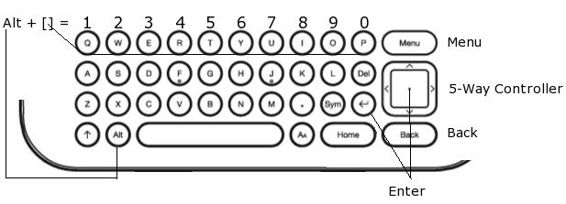
First, study the following illustration showing the keys, which are used for navigating this publication on Kindles with a physical keyboard.
• To jump directly to any verse in the Bible on Kindle 2, Kindle DX or Kindle Keyboard:
1. With the Bible open, press the MENU key.
2. Select INDEX.
3. Type the abbreviation for the desired Bible book, followed by a space. Use only the following book abbreviations that are indicated in the table of contents.
4. Type the chapter number, followed by a space, and the verse number. For example, jn 3 16.
5. Press ENTER.
A hint: while holding the ALT key on Kindle DX or Keyboard press one of the top-row keys to enter numbers (see the illustration above). So, Alt+q=1, Alt+w=2, Alt+e=3, Alt+r=4, Alt+t=5, Alt+y=6, Alt+u=7, Alt+i=8, Alt+o=9, Alt+p=0.
• To jump directly to any verse in the Bible on Kindle Touch:
1. With the Bible open, tap at the top of the screen.
2a. Type in the search window the abbreviation for the desired Bible book (as above), followed by a period. Then type the chapter number, followed by a period, and the verse number. For example, jn.3.16 (Note that this will only work after the book has been indexed, which could take several hours or days. The alternative method below will work immediately.)
3a. Press Enter, select the search result and press Enter again.
or
2b. Type in the search window the abbreviation for the desired Bible book (as above), followed by a space. Then type the chapter number, followed by a space, and the verse number. For example, jn 3 16
3b. Change the search from “This Book” to “Index Items.” Press Enter and tap on the search result.
• To open the table of contents, press the MENU key, select “Go to . . . ” and then “table of contents.” While there, select the text you want to read with the cursor (use the 5-way controller to move the cursor) and press ENTER. The underlined numbers lead to the Bible chapters, while the underlined dot to the right of any chapter number leads to the corresponding section in the Commentary.
• Press/tap on the underlined book or chapter title or verse or verse number in the Bible to move to the corresponding entry in the Commentary. While in the Commentary do the same to return back to the Bible. You can also reach the Commentary by pressing/tapping on the underlined dot in the table of contents.
A hint: an underlined number, word, phrase, or symbol is a hyperlink that you can click to move to the linked text. To return to the initial position after following a hyperlink, press the BACK key (or tap on the arrow pointing left if you have a touchscreen Kindle).
• Press/tap on the underlined dagger (†) to move to the corresponding note. As mentioned above, the underlined superscipt verse numbers lead to the Commentary.
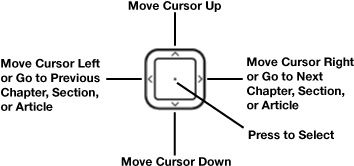
• With the Bible open and no cursor appearing on the screen, press the 5-way controller (see the illustration below) right or left to move to the next (right) or previous (left) chapter. If you see the title of a Bible book at the top of the page, this navigation method will move to the next (right) or previous (left) book. On Kindle Touch, swipe your finger up or down to use this function.
For other OSNOVA publications, please visit www.osnova.com.
We pray that the Bible reading on your Kindle bear fruit in your life.